Proxy Mail QA for ChromeFree
Fill the sign-up form and get the code without leaving the page.
One click fills a test address, name and password into your app’s sign-up form. It asks to save the password you used, then shows the verification code or link right in the page. Only on the test sites you turn it on for.
Free on every plan · Chrome, Edge, Brave and Arc · Signs in with your Proxy Mail QA account
How it works
From blank sign-up page to verified, in one tab.
Turn it on for your test site
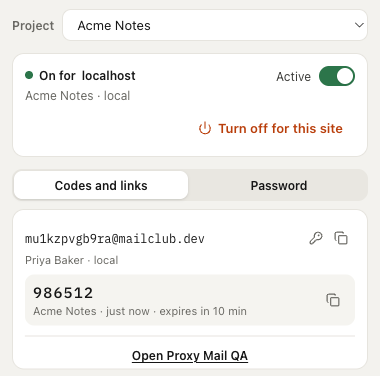
Open your app’s sign-up page, click the extension and choose Turn on for this site. Chrome asks for access to that one site. A local dev server is one click, on any port.
Fill the whole form in one click
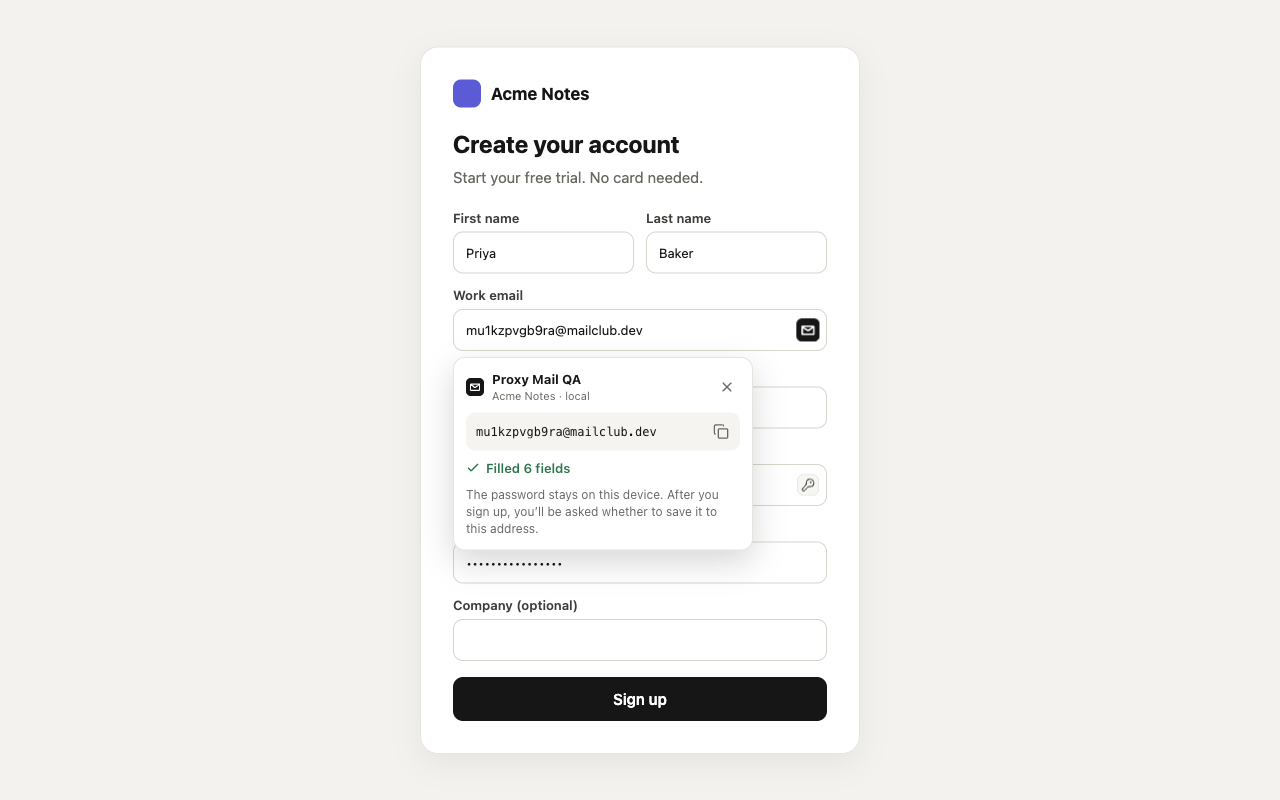
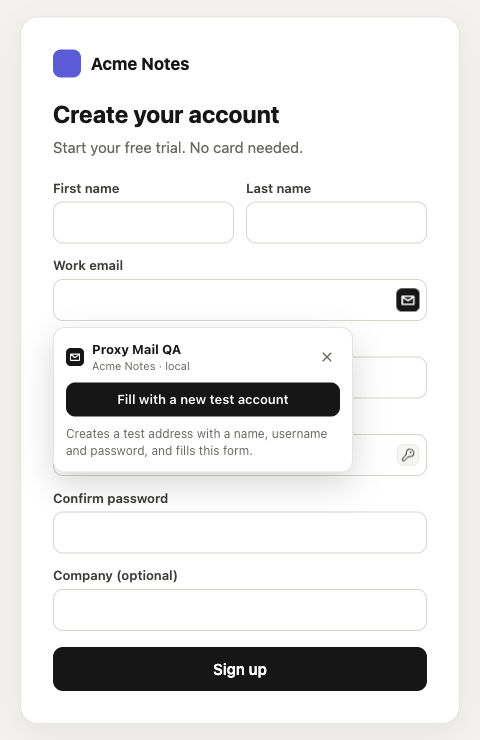
The button in the email field creates a test address with a fictional name, a username, an adult’s date of birth and a strong password, and fills every field: names, email, username, date of birth, password and its confirmation.
Save the password you used
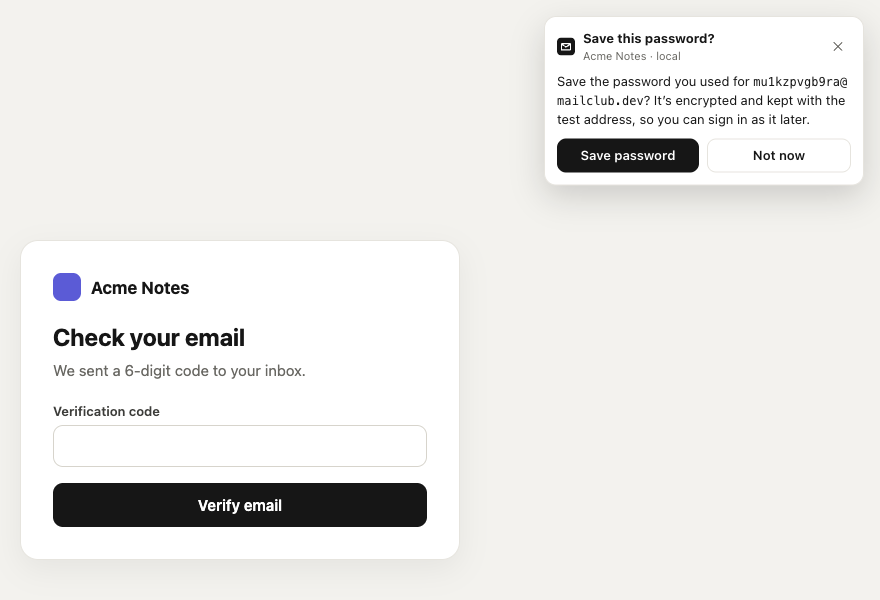
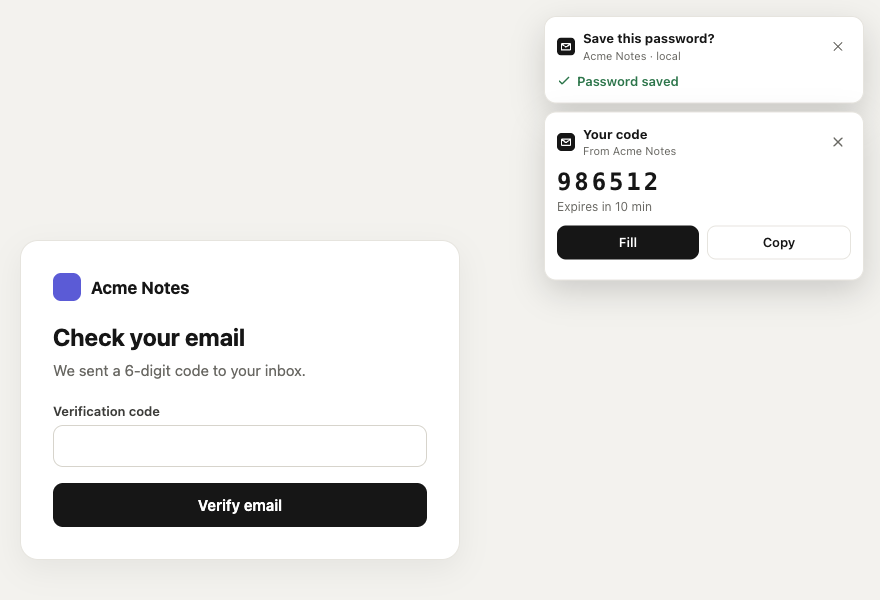
After you sign up, it asks whether to save the password to the test address. It’s encrypted and kept with the address, so you or a teammate can sign in as that account later.
Get the code or link in the page
When the email lands, the code appears in the page. Fill puts it in the code field, even a row of single-digit boxes. A verify or sign-in link gets Open, in a new tab.
What it does
Everything for a sign-up test, inside the page.
Fills the whole form
Email and confirm email, first and last or full name, username, date of birth (one date field, or day, month and year boxes or drop-downs), password and confirmation. Company, phone and other fields are left alone. Works with React, Vue, forms without a <form>, forms built from web components such as Shoelace, and forms inside frames.
Sign in again as any test account
On a sign-in form, pick one of your project’s test accounts and it fills the email and its saved password. The ones you used on that site come first, and every password shown is logged.
Passwords that pass
Made on your device to fit each field’s rules: its minimum and maximum length and the characters it allows. A key button in password fields makes a new one any time.
Asks before it saves
Only after you submit, and only when the email field holds a Proxy Mail QA address. You choose Save or Not now every time.
Codes and links in the page
For the address you just used: Fill and Copy for codes, Open and Copy for verify, sign-in, invite and reset links.
The toolbar popup
Make a new test address with a name, username, date of birth and password, each with its own Copy button, or fill the page with it. Your project’s recent addresses with their newest code or link, and their saved passwords on request. It opens on the project linked to the site you’re on.
Projects and environments
Each site belongs to a project and an environment, such as staging, QA or local, so every address is labelled with where it was used.
Pause on a tab
One switch stops it on the tab you’re on, without removing the site. The toolbar badge shows ON wherever it’s active.
Local and preview sites
localhost on any port in one click, and preview deployments such as *.preview.yourapp.com. It works in Chrome, Edge, Brave and Arc.
Privacy and safety
It stays out of your personal browsing.
Built for test accounts on test sites, with the least access Chrome allows. Read the privacy policy.
-
Off everywhere until you turn it on
It has no access to any site until you turn it on there, and Chrome asks for access to that one site. Everywhere else, nothing of it runs.
-
Never all sites
It refuses patterns like *.com or *.vercel.app that would reach other people’s sites, and warns before turning on for a site that looks live.
-
Reads only what it fills
The email, name, username, date-of-birth and password fields of the form you’re filling. Never other fields, page text or your browsing history.
-
You decide about passwords
A new password stays on your device until you choose to save it; then it’s encrypted on our servers. A saved one is fetched only when you pick that account to sign in, and every reveal is logged.
-
Never opens links
Single-use links stay valid: a link opens only when you click Open.
-
Your account, its own session
It signs in through the Proxy Mail QA app, with no separate password. Signing out of one leaves the other signed in.
Testing with an AI agent instead?
Claude Code, Cursor and other agents use the Proxy Mail QA MCP server to sign up and read the code, no extension needed.
FAQ
Questions
How do I start?
Add it from the Chrome Web Store, then click its icon in the toolbar and sign in with your Proxy Mail QA account: it signs in through the app, with no separate password. Then open your app’s sign-up page and choose Turn on for this site. It’s free on every plan, so a free account is all you need.
Which browsers does it work in?
Chrome and other Chromium browsers that install Chrome extensions, such as Microsoft Edge, Brave and Arc. A Firefox version is planned for later.
Will it get in the way of my password manager?
No. It fills only when you click its button in a field, and only on sites you turned it on for, so it doesn’t compete with 1Password, Chrome’s autofill or other extensions.
What if it can’t find my form’s fields?
It reads each field’s labels, placeholders and autocomplete hints, so it works with most sign-up forms, including ones built without a <form> tag, as many app builders make them, and ones built from web components. If a field is missed, the toolbar popup makes a new address with each detail ready to copy, and its Fill this page button fills the form you last clicked into.
Can it see the rest of my browsing?
No. Chrome only lets it into the sites you turned it on for, and even there it reads only the fields of the sign-up form you’re filling. It doesn’t read your history or other tabs.
Do I need it if my AI agent tests my app?
No. Coding agents such as Claude Code and Cursor use the Proxy Mail QA MCP server instead, with no browser extension. The extension is for people testing sign-ups by hand.
Your next sign-up test, in one tab.
Add the extension, sign in with your free Proxy Mail QA account and turn it on for your test site.