Sign-ups over several screens
此内容尚不支持你的语言。
Many sign-ups ask for company details or onboarding questions on the screens after Next. Proxy Mail QA for Chrome fills those screens with the same test account, when you ask or by itself on sites set up for it. It never presses Next or submits.
The question after Next
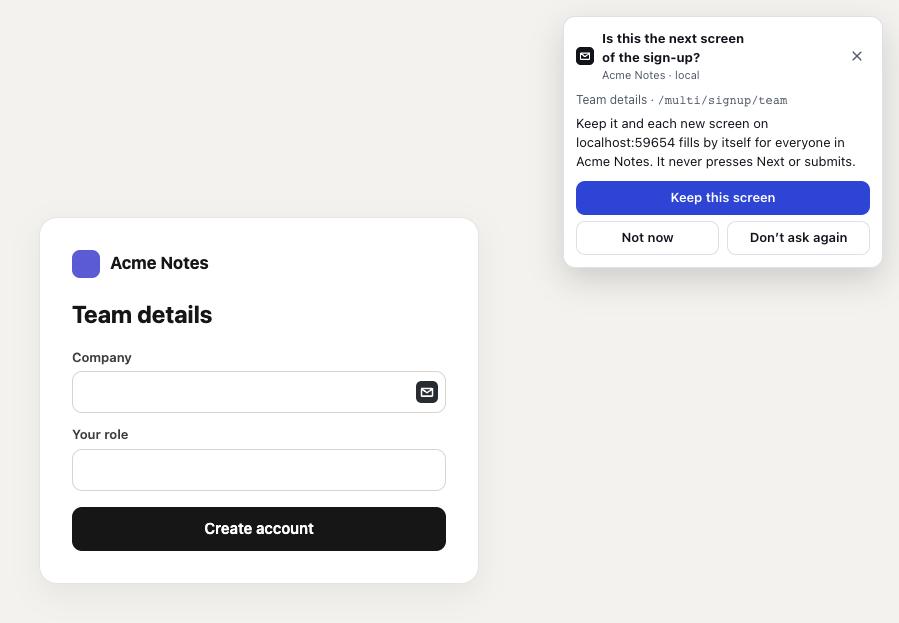
Section titled “The question after Next”Start the sign-up from the email field, as in Fill a sign-up form. When you press Next or Continue and a new screen shows, a card asks “Is this the next screen of the sign-up?”, naming the screen by its heading and path.
- Fill this step, the button in the screen’s first empty field, opens a card that fills this screen with the same test account.
- Keep this screen adds the screen to the site’s sign-up screens and fills it, then fills each new screen on this site by itself from now on, for everyone in the project.
- Not now stops the question on this site, for you.
- Don’t ask again stops the question on every site, for you in this Chrome profile.
- × closes the question for this sign-up only.
It asks once a sign-up at most. It never asks after Create account or Submit, on a payment screen, on a screen you’ve typed in, or on a site that already fills each screen by itself. Where only the project’s leads change sites, Keep this screen asks them instead, and each new screen fills by itself once a lead says yes.
The next screens fill by themselves
Section titled “The next screens fill by themselves”After Keep this screen, the screen you’re on fills, and so does each new screen after you press Next, half a second after it settles. The card opens so you can check what went in.
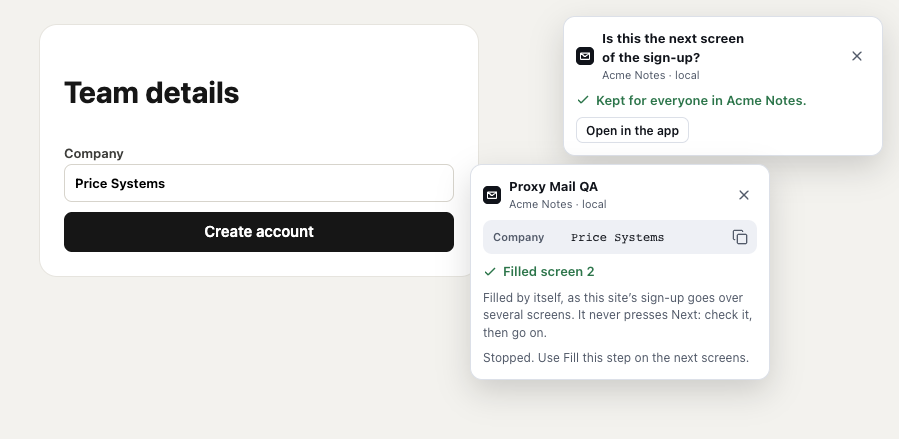
- Kept for everyone in Acme Notes. The screen is in the site’s list now, and filling by itself is on for the site.
- Open in the app opens the site’s settings in Proxy Mail QA.
- Filled screen 2 says which screen was filled, or “Filled step 2 of 3” when the page shows its steps.
- Filled by itself reminds you that it never presses Next: check the screen, then go on.
- Stopped. Use Fill this step on the next screens. shows once you press Stop for this sign-up, which stops filling by itself until the next sign-up.
It stops after 10 screens or 15 minutes without a fill, and it fills only on the project’s sites. It never fills a form that appeared without a button press, a sign-in form, a payment screen or a field you’ve typed in.
Fill this step
Section titled “Fill this step”Otherwise, fill each later screen when you’re ready, in one of three ways:
- Fill this step in the screen’s first empty field opens a card with the sign-up’s address and a Fill this step button. It fills the screen with the same test account, the project’s custom fields and guesses.
- Alt+Shift+F (Option+Shift+F on a Mac) fills the screen straight away. Change it at
chrome://extensions/shortcuts. - Fill this page in the popup’s Sign-up on this tab card does the same.
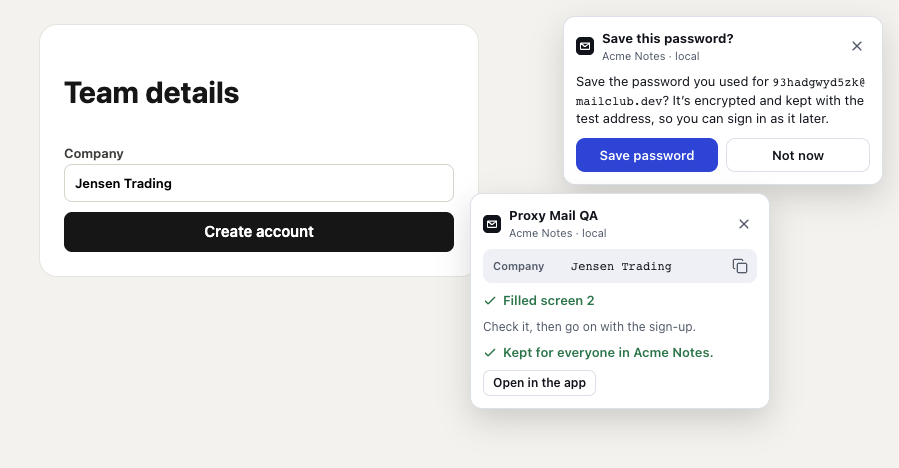
- Save this password? is from the first screen, sent with Next. On a site that fills each screen by itself, it waits until the sign-up’s email arrives or the sign-up ends.
- Filled screen 2 sits under what went in. Check it, then go on with the sign-up.
- Kept for everyone in Acme Notes. shows after Keep this screen on the card, offered when the screen isn’t in the site’s list yet. It does what Keep this screen in the question does.
When a field was guessed, the card says so, such as “Filled step 2 of 3, 1 guessed. Check them before you submit.” See Guesses and Teach.
Turning it on or off
Section titled “Turning it on or off”- The question is yours alone: switch Ask after Next or Continue in the extension’s options, from the Options gear at the foot of the popup. Ask on these sites again there undoes Not now.
- Filling by itself is for the whole project: Project settings → Sites → Sign-up goes over several screens, on the site’s row, switches it on, as Keep this screen does. The screens kept so far are under Sign-up screens on the same row. See Custom fields.
Good to know
Section titled “Good to know”- The test account stays with the tab for 15 minutes after the last fill, across page loads, on any of the project’s sites. Going back a screen doesn’t end the sign-up.
- A screen whose path is made for one sign-up (with an email address, an ID or a token in it) isn’t added to the list, but Keep this screen still switches the setting on.
- Signing in on the tab ends the sign-up. Fill this step isn’t offered on sign-in forms.
- Open a confirmation link with Open on the email’s card, so the new tab keeps the sign-up’s account. See Codes and links in the page.