Password resets
When you test your app’s password reset, Proxy Mail QA for Chrome shows the reset email’s link in the page, fills a strong new password on the reset page and asks whether to save it as the test account’s new password.
Ask for the reset
Section titled “Ask for the reset”On a site where Proxy Mail QA is on, send your app’s forgot-password form with the test address in it. The reset email’s link shows in the tab you sent the form from, so keep that tab open.
When the reset email arrives at the test address, a card shows in the page:
- Password reset link, with the service it came from, or “Just arrived”, and the link itself.
- Open opens the link.
- Copy copies it.
Proxy Mail QA never opens a link on its own: the reset page opens only when you choose Open. For how the cards for codes and other links work, see Codes and links in the page.
Open the reset page
Section titled “Open the reset page”Choose Open. The reset page opens in a new tab beside this one, and the card says “Opened in a new tab.” When the reset page is on one of the project’s sites, the new tab carries the reset on, so Proxy Mail QA knows which test account the new password is for.
Open only opens web links, and only a link the card showed in that tab.
Fill a new password
Section titled “Fill a new password”On the reset page, choose the key button in the new password field, then Fill a strong password. Proxy Mail QA makes a password on your device to fit the field’s rules and fills it in the new password field and its confirmation. The card says Password filled, with the password behind Show and a copy button.
To check how your app handles an awkward password, pick one from Edge-case password on the same card before you fill. It goes in as it is; once you’ve saved it, check that signing in with it works.
A reset page never offers saved accounts: its key button only makes new passwords.
Save the new password
Section titled “Save the new password”Send the form with your site’s own button. Proxy Mail QA never presses it for you. Once the form is sent, a card asks whether to save the new password.
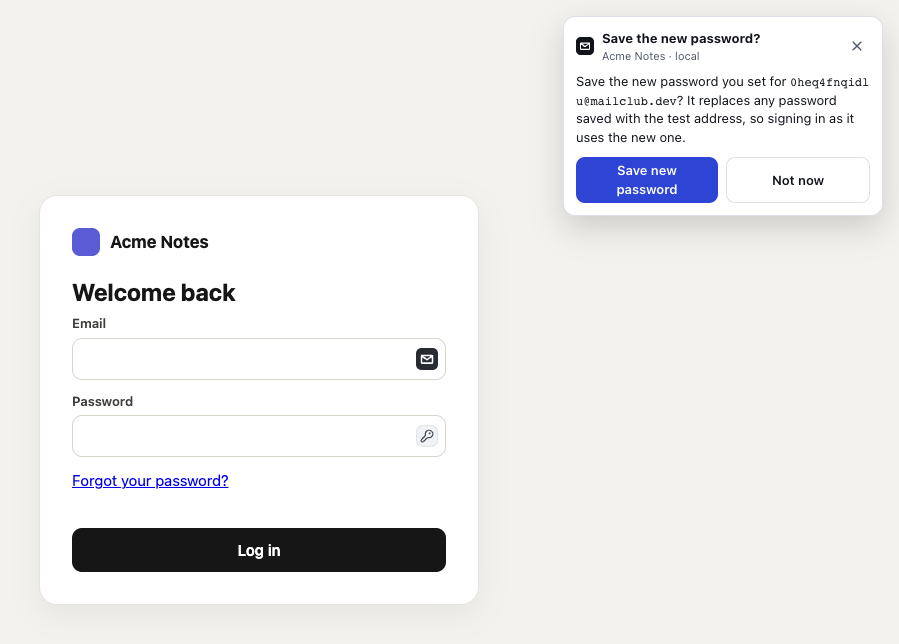
- Save the new password? names the test address whose password you reset. The new password replaces any password saved with it, so signing in as that account uses the new one.
- Save new password saves it, encrypted. The card then says New password saved.
- Not now saves nothing and keeps the old saved password.
Until you choose Save new password, the new password stays on your device. If the page couldn’t show the question, the popup asks it instead. To sign in with it next, see Save and sign in again.
Good to know
Section titled “Good to know”- It asks only once a reset form is sent with a new password in it, never when the form is only filled.
- A reset page you open some other way, such as from your mail app, is still read as a reset when the page shows the test address in a read-only email field.
- Saving a new password changes only the password: the test account keeps the page and environment it signed up on. The reset page’s address, which can hold the reset’s token, is never sent.
- Signing in never asks to save a password.