Fill a sign-up form
The button in a sign-up form’s email field makes a new test account and fills the form with it. Use it each time you test a sign-up by hand on one of your test sites.
Open the card from the email field
Section titled “Open the card from the email field”On a site you’ve turned it on for, Proxy Mail QA for Chrome puts a small button inside the sign-up form’s email field. Press it to open the card.
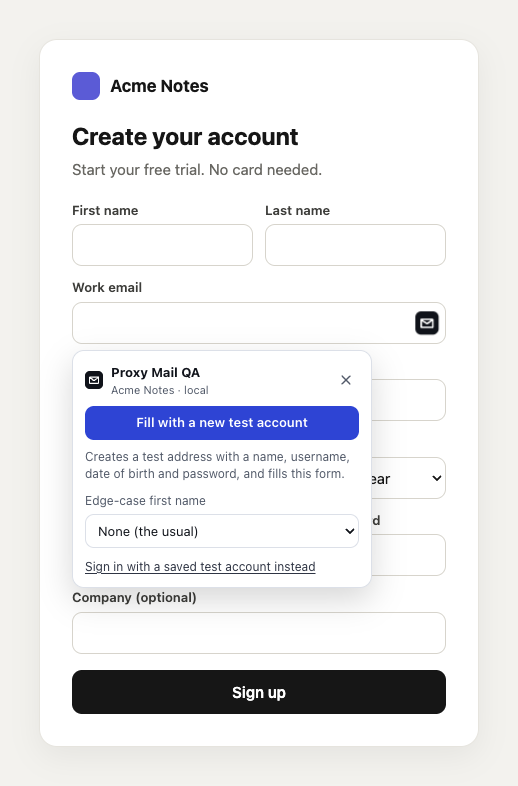
- The Proxy Mail QA button in the email field opens this card. Press it again to close it.
- Proxy Mail QA heads the card, with the project and environment the test account goes into: here Acme Notes, local.
- Fill with a new test account makes the test address and fills the form.
- Edge-case first name picks an awkward first name to fill instead of the usual one, to see how your app takes it.
- Sign in with a saved test account instead lists your project’s test accounts, for when you meant to sign in.
What goes in
Section titled “What goes in”Fill with a new test account makes a test address in the project, with a fictional name, a username, an adult’s date of birth and a strong password made on your device to fit the field’s rules. Then it fills:
- the email, and a confirm-email box
- the first and last name, or the full name
- the username and the date of birth (one date field, or day, month and year boxes)
- the password and its confirmation
- the company and the country, where the form asks for them
- your project’s custom fields, such as company size
Fields nobody has taught get a marked guess, as your project’s setting says. See Guesses and Teach.
What it leaves alone
Section titled “What it leaves alone”- It never presses Sign up, Next or Submit. You check the form and send it yourself.
- A guess never replaces what a field already holds.
- Tick boxes, such as a terms or marketing box, are never ticked by a guess.
- Payment, ID and tax number, password and secret, code, CAPTCHA and upload fields are never guessed. The card lists them under Not filled with the reason.
- Code boxes wait for the email: the code card fills them. A promo box waits for a coupon (see Offers and Marketing).
- A list the page draws itself that takes several answers is never opened. Choose those yourself.
The card beside the form
Section titled “The card beside the form”After the fill, the card moves beside the form, so it doesn’t cover what you’re checking.
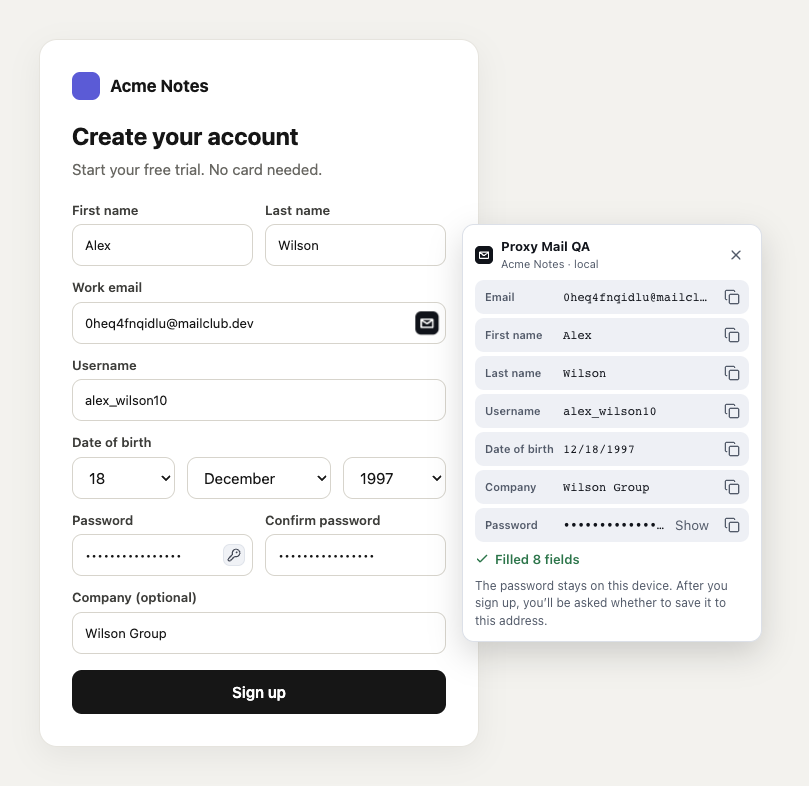
- Email and each row under it show what went in, so you can check them against the form.
- The copy button on a row copies that value.
- Show shows the password, which is hidden until you press it.
- Filled 8 fields counts what went in. Under it, the card says the password stays on this device until you’re asked to save it after you sign up.
Drag the card by its header if it’s in your way. ×, Esc or a press outside the card closes it. Once you send the form, Proxy Mail QA for Chrome asks whether to save the password (see Save and sign in again) and shows the code or link the email brings.
When it guessed or left fields
Section titled “When it guessed or left fields”When there’s something to check, the card says how many fields it guessed, puts a dashed outline round each one on the page, and lists them under Guessed and Not filled.
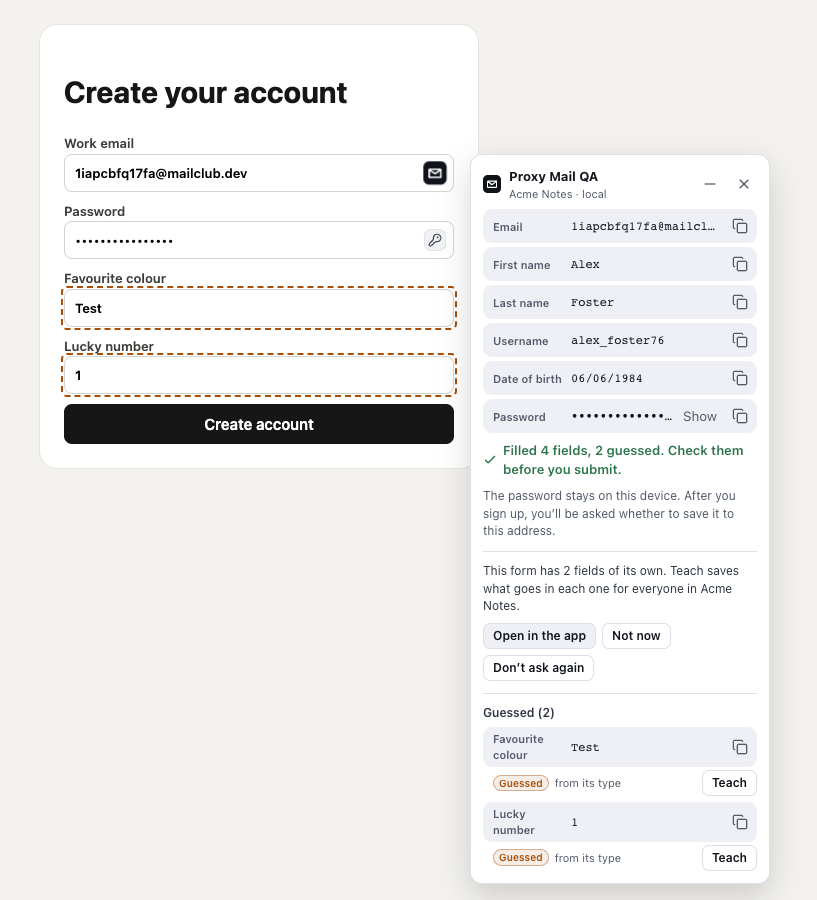
- Minimise tucks the card into a pill in the corner of the window.
- Filled 4 fields, 2 guessed asks you to check the guesses before you submit.
- This form has 2 fields of its own shows the first time a form on one of your test sites has fields that Teach could save.
- Open in the app opens your project’s custom fields. Not now stops the line on this site, and Don’t ask again on every site.
- Guessed (2) lists each guess, where it came from, and Teach.
To get the line back after Don’t ask again, switch on Suggest custom fields after a fill in the extension’s options. On a project where only leads change custom fields, the line says that Teach asks the leads.
Minimise to the pill
Section titled “Minimise to the pill”Minimise shows on a card that lists fields to check.
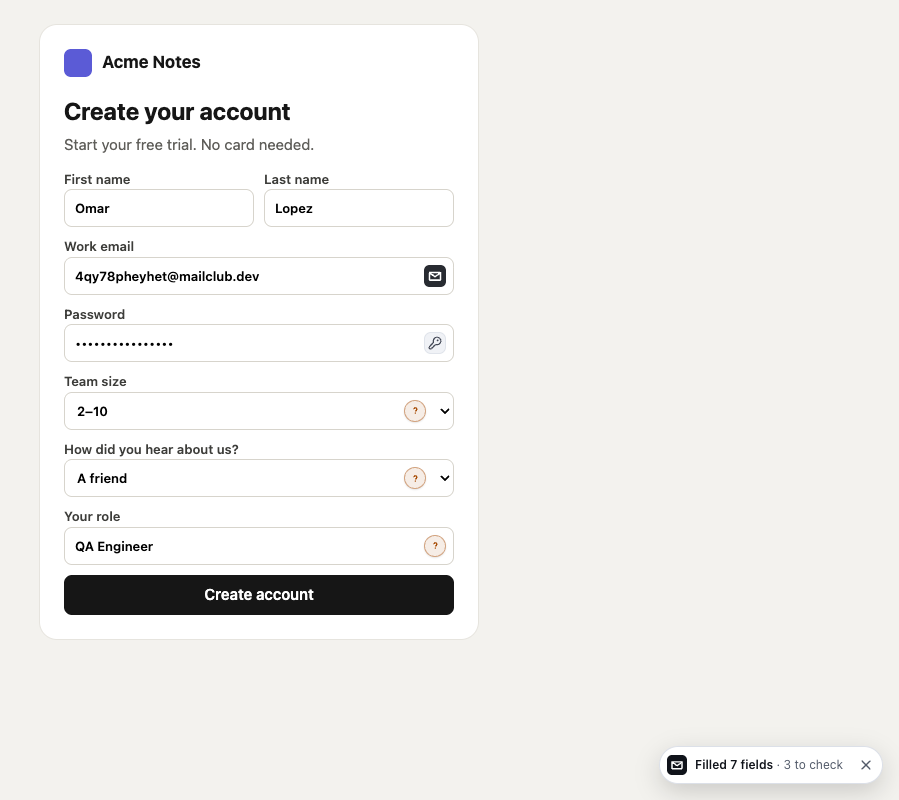
- Filled 7 fields · 3 to check is the pill. Press it to bring the card back.
- The pill’s × hides the pill. The marks stay.
- The mark by a field it guessed or left empty opens a small card for that field, with Teach.
Closing the card with × leaves the pill and the marks too. A mark goes once you type in or change its field, and they all go when you fill again or move on to the next screen. See Guesses and Teach for what a mark’s card does.
Good to know
Section titled “Good to know”- The button shows only on sites you’ve turned Proxy Mail QA for Chrome on for, while Sign-up is ticked for the site in the popup. Those should be test sites.
- The key button in a password field fills just a strong password, made on your device to fit that field’s rules, in both password fields.
- On a sign-in form, the button offers your saved test accounts first. See Save and sign in again.
- For the screens after Next, use Fill this step. See Sign-ups over several screens.