Offers and Marketing
Offers and Marketing are two extra modes for testing what your app sends after sign-up. Offers shows the coupon from your app’s welcome offer email in the page and asks whether checkout took it; Marketing notes what the sign-up form’s marketing box said. Both come with Marketing and offer emails, a Labs feature.
Switch them on in Labs
Section titled “Switch them on in Labs”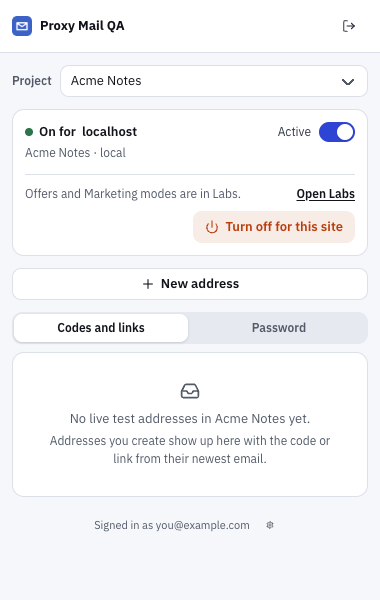
- Offers and Marketing modes are in Labs. shows in the site card while the feature is off.
- Open Labs opens Account settings → Labs in the app.
Switch on Marketing and offer emails under Account settings → Labs. The switch is yours alone: teammates switch on their own. The extension picks it up the next time you open its popup.
While the feature is off, Offers and Marketing are off on every site, whatever you chose. Your choices come back when you switch it on again.
Choose what to test on each site
Section titled “Choose what to test on each site”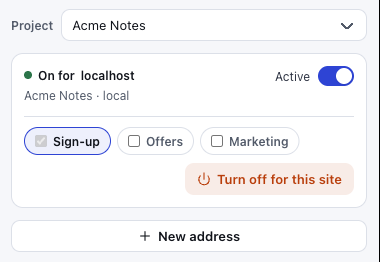
- Sign-up fills forms and shows codes and links in the page. It’s the only one ticked to start with.
- Offers shows coupons, fills promo codes and asks whether they worked.
- Marketing notes the marketing box as it was at sign-up.
Open the popup on a site that’s on (see Turn it on for a site) and tick the modes you want in the site card. Any mix works, but one must stay ticked. Your choice applies to this site only, on this device.
If you untick Sign-up, the extension puts no buttons in that site’s forms and shows no codes or links there.
Offers: the coupon card
Section titled “Offers: the coupon card”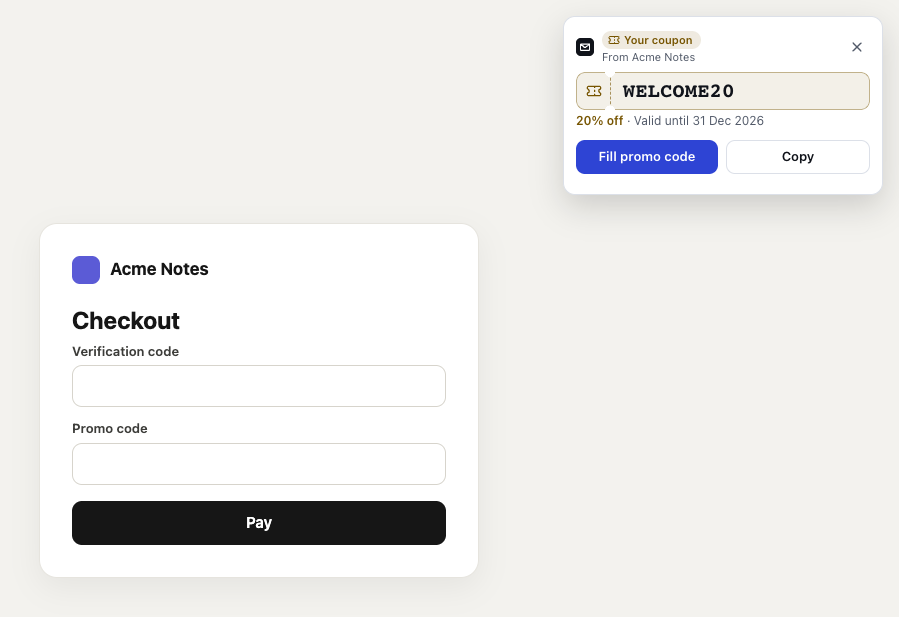
- Your coupon shows when a coupon arrives for the test account you used in this tab, with the service it came from.
- The coupon itself, ready to fill or copy.
- 20% off · Valid until 31 Dec 2026 is the discount and end date from the email, when it gives them.
- Fill promo code puts the coupon in the page’s promo code box. Copy copies it instead.
- Promo code is the only kind of box it fills, never the verification code box above it.
With Offers on, sign up with a test account as usual. When your app’s welcome offer email arrives with a coupon, the card shows it on the site’s page in that tab. It never fills the coupon by itself.
Fill promo code uses the box you last clicked if it’s a promo box, or else the first promo, coupon, discount, voucher or gift code box on the page. If the page has none, it copies the coupon and says so.
After Fill promo code or Copy, the card asks “After applying it at checkout: did it work?” Apply the coupon, then choose Accepted or Refused. The card says “Recorded: accepted” or “Recorded: refused”, and the result is kept with the test account.
The coupon also shows in the popup under Codes and links, beside its test account, with its discount, its end date (“ended” once that day has passed) and the checkout result, such as “Accepted at checkout”.
Marketing: the opt-in box
Section titled “Marketing: the opt-in box”With Marketing on, when you submit a sign-up or sign-in form with a test address, the extension notes two things about the form’s marketing box: whether you were opted in when you submitted, and whether the box already said yes when the page loaded. Both are kept with the test account, for the marketing rules by country.
- It never ticks or unticks the box. A fill leaves it as the site set it: it’s yours to choose.
- Boxes worded either way count. For “Send me offers”, a tick means opted in; for “I don’t want marketing emails”, a tick means declined.
- A short card confirms it. After you submit, a “Marketing consent noted” card says what was noted, such as “Marketing: opted in”, for a few seconds.
- The popup shows it too. Under Codes and links, open a test account with the arrow beside it. Its Marketing box says “Opted in to marketing” or “Declined marketing”, with “box started ticked” when it did.
Check that unsubscribing works
Section titled “Check that unsubscribing works”Unsubscribe with the link in one of the account’s marketing emails yourself: Proxy Mail QA never opens a link on its own. Then open the account in the popup and choose I unsubscribed in its Marketing box.
Proxy Mail QA watches the sender of that account’s newest marketing email, and flags any later marketing from that sender. The popup names the sender it’s watching, and the account shows “Watching … since unsubscribing” from then on.
Good to know
Section titled “Good to know”- Coupons themselves aren’t in Labs: the app finds a coupon, its discount and end date for everyone. Labs adds the extension’s coupon card and the checkout result.
- The extension looks for a promo code box only with Offers on, and notes a marketing box only with Marketing on.
- A coupon is never shown as a sign-in code, and a sign-in code never goes in a promo box.
- Marketing isn’t noted on a password reset form.