Guesses and Teach
A field no custom field covers can get a guess, marked for you to check before you submit. Teach saves what goes in that field for everyone on your project, so it fills the same way next time, in the browser and for your coding agents.
Guesses on the card
Section titled “Guesses on the card”While the card is open after a fill, each guessed field has a dashed outline, and the card lists them under Guessed.
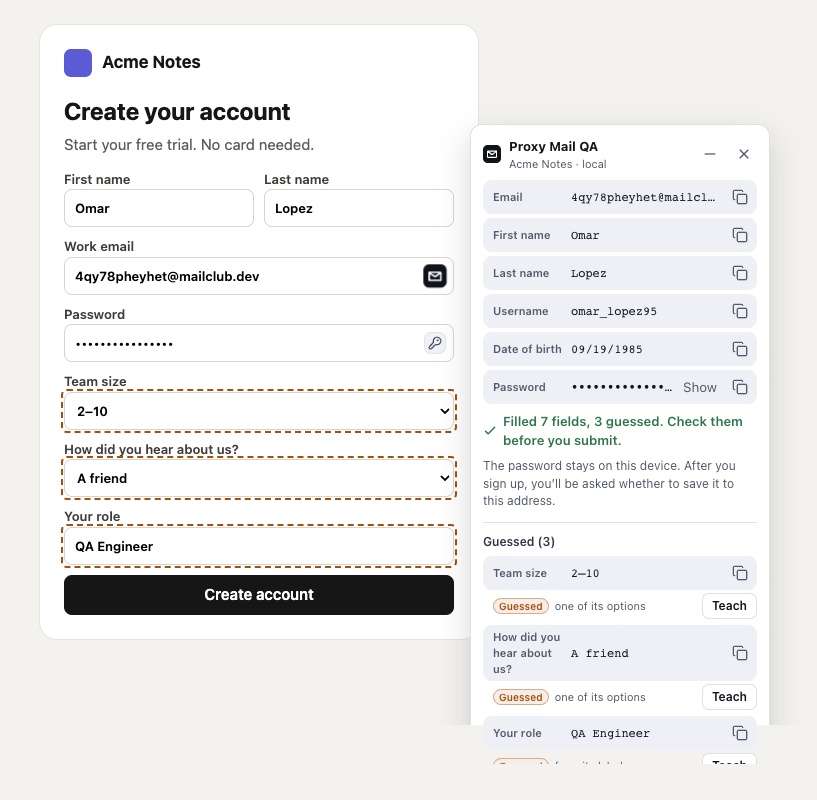
- The dashed outline goes round each field that got a guess.
- Filled 7 fields, 3 guessed counts the guesses. Check them before you submit.
- Guessed (3) lists each guessed field with its value and a copy button.
- Guessed and the words beside it say where the guess came from: its placeholder, one of its options, its pattern, its label or its type.
- Teach saves what goes in this field instead.
A field called Job title gets QA Engineer, a drop-down one of its own options, and a text box with nothing else to go on “Test”. The same test account gets the same guesses each time. Which fields get one is your project’s choice, under Project settings → Custom fields → Fill fields it doesn’t know: Every field (the default), Required fields only or Off.
Fields left empty are under Not filled, with the reason and, where it helps, Teach. A field that already has a custom field shows Change instead, and one you’ve asked a lead about shows Waiting for a lead.
The marks left on the page
Section titled “The marks left on the page”When you minimise or close the card, each guessed field, and each empty one with Teach, keeps a small round mark: tinted for a guess, plain for an empty field.
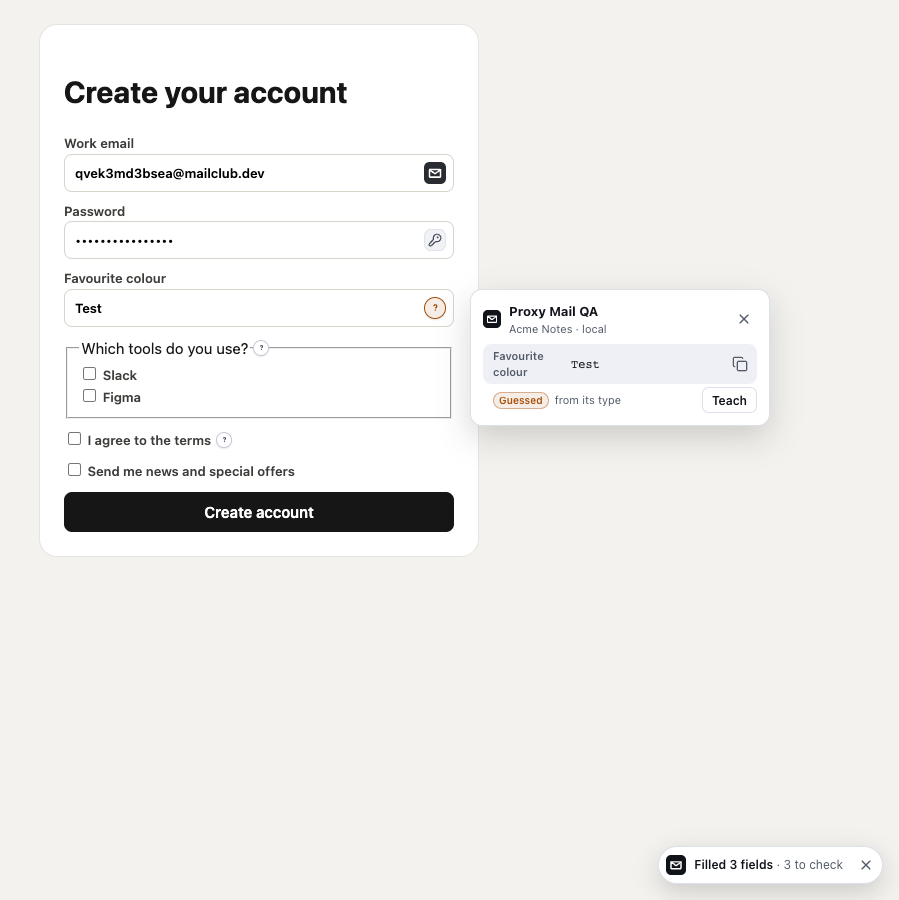
- The tinted mark by Favourite colour is a guess. Pressing it opened the small card beside the form.
- The plain mark by “Which tools do you use?” is a field left empty, here a question’s tick boxes.
- Teach in the small card works as it does in the full card.
- Filled 3 fields · 3 to check is the pill, which brings the full card back.
Esc or a press outside closes a mark’s card. A mark goes once the field is taught or you change it. Fields Teach isn’t offered on, such as a payment field, get no mark.
Teach what goes in a field
Section titled “Teach what goes in a field”Choose Teach beside a field, in the card or a mark’s small card.
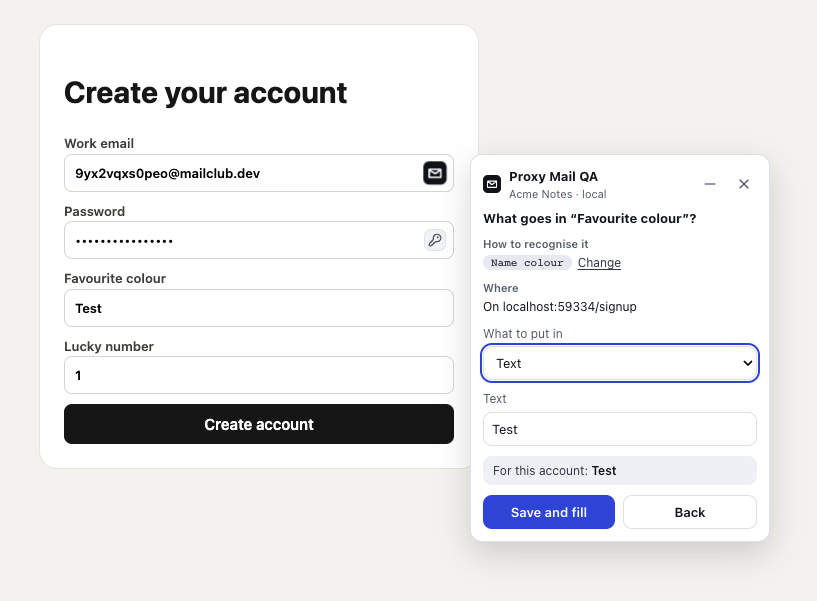
- What goes in “Favourite colour”? names the field you’re teaching.
- How to recognise it shows the steadiest way to find the field: its test ID, name or ID, or words from its label. Change shows the others.
- Where is the page it’s saved for, whatever the page’s language.
- What to put in depends on the field. For this account shows what this test account gets.
- Save and fill saves it for everyone on the project and fills the field now. Back returns to the card without saving.
What you can put in:
- A text box: Text, From the test account (with chips for the first and last name, username, company and random digits), Generate it, One of a list (a different answer for each account) or Leave it empty.
- A drop-down or radio buttons: One of its options, A different one for each account, Generate it or Leave it empty.
- A tick box: Ticked, Unticked or Leave it empty.
- A question’s tick boxes, or a drop-down that takes several answers: Several options. Tick the options every account gets, starting from what’s ticked on the page.
With an option or a list, Tag the account with the answer tags the test account, so a test can find it later.
After Save and fill
Section titled “After Save and fill”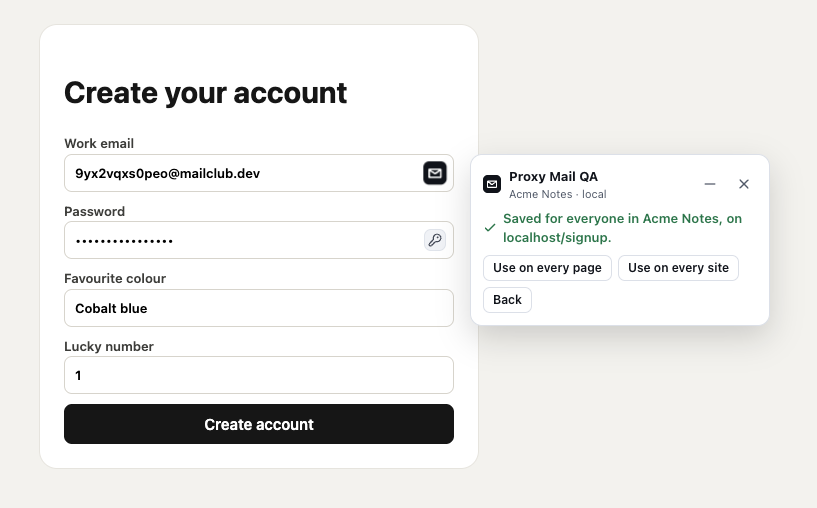
- Saved for everyone in Acme Notes names the project and the page it applies on.
- Use on every page widens it to the whole site.
- Use on every site widens it to every site in the project.
- The field now holds what you taught.
The custom field shows in the app under Project settings → Custom fields, marked “from the extension”, and your teammates’ fills and your agents’ form_values use it from then on. See Custom fields for how a field is recognised and which custom field wins.
Teaching a field that already has a custom field changes it, and adds Remove. Where only leads change custom fields, Save and fill becomes Ask a lead. On a page in another language, Save as can add the label to a custom field you already have instead (Add and fill).
Never guessed
Section titled “Never guessed”Whatever the project’s setting, these are never guessed, and the card lists them under Not filled:
- payment fields, such as card numbers and IBANs
- ID and tax numbers, such as passport and VAT numbers
- passwords and secrets other than the account’s own, such as PINs and API keys
- codes from somewhere else: one-time, promo, coupon and referral codes
- CAPTCHAs, uploads, colour pickers, hidden fields and search boxes
- tick boxes and switches, as ticking one agrees to something
- drop-downs that take several answers, and fields that already hold something
Teach isn’t offered on payment, password, CAPTCHA or upload fields. An ID or tax number can take a fixed test value your team publishes.
Good to know
Section titled “Good to know”- A phone field gets only a number set aside for fiction (07700 900xxx in the UK, 202-555-01xx in the US and Canada). For an account from another country, or when none fits, it’s left under Not filled: teach your app’s own test number. Taught by the field’s test ID, name or ID, as Teach first offers, that number goes in for every account on that page, in your agents’
form_valuestoo, ahead of the project’s Phone number. - To start Teach’s list for a question’s tick boxes, it reads which are ticked. That stays on the page unless you press Save and fill or Ask a lead.
- Custom fields never apply on sign-in forms.