Save and sign in again
After a sign-up, Proxy Mail QA for Chrome asks whether to save the password you used. Once it’s saved, you can sign in as that test account again from any sign-in form on your test sites, or from the popup.
Save the password after a sign-up
Section titled “Save the password after a sign-up”When you send a sign-up form with a Proxy Mail QA address in it, a card asks whether to save the password the form was sent with. It shows on that page, or on the next one if the site moves on first.
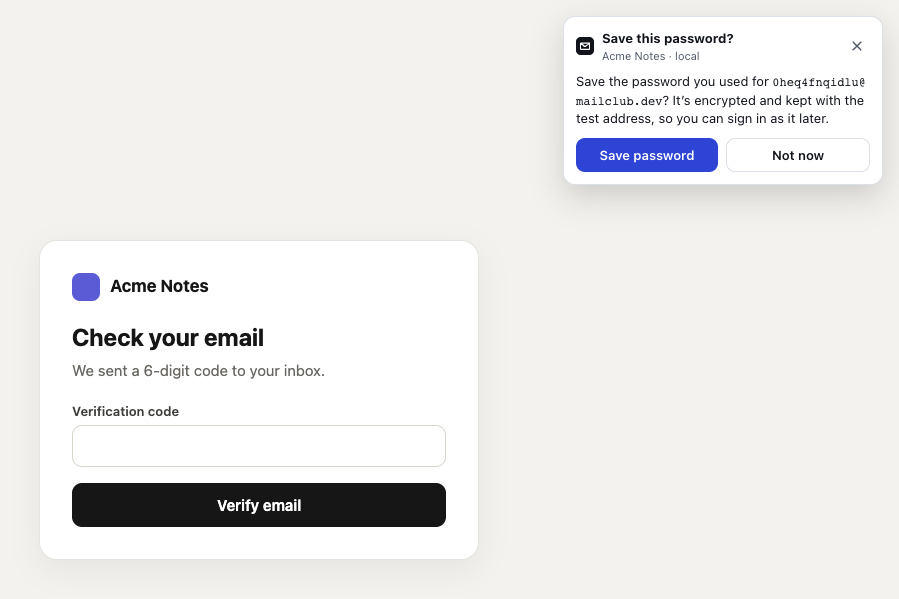
- Save this password? asks about the test address the form was sent with. Under it are the project and environment.
- Save password encrypts the password and keeps it with the test address. The card then says Password saved.
- Not now saves nothing, and neither does the × in the corner.
Until you choose Save password, the password stays on your device. Once saved, it’s encrypted on Proxy Mail QA’s servers, and you or a teammate can sign in as that account later. If the page couldn’t show the question, the popup asks it instead.
Sign in as a saved test account
Section titled “Sign in as a saved test account”On a sign-in form on a site where Proxy Mail QA is on, the buttons in the email and password fields offer your project’s saved test accounts first.
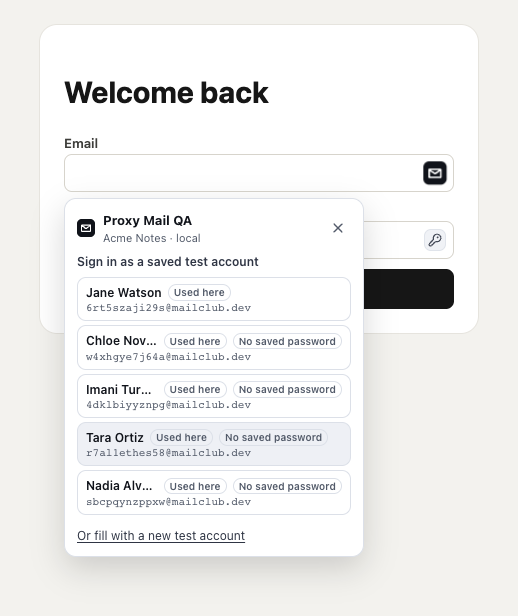
- The Proxy Mail QA button in the email field opens the list.
- Sign in as a saved test account lists the project’s test addresses, with the ones you used on this site first.
- Used here marks an account you used on this site.
- No saved password marks an account with no password saved. Choosing it fills its email but no password, so you type that yourself.
- Or fill with a new test account switches to a new account. On a sign-up form, Sign in with a saved test account instead switches the other way.
Choose an account to fill its email or username and its saved password.
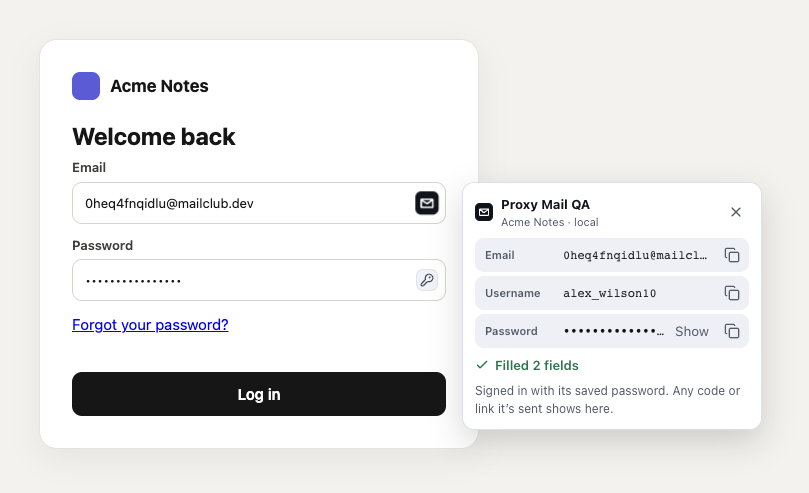
- The button in the password field offers the same accounts. A sign-in form has no button for a new password.
- Filled 2 fields says what went in. Any code or link sent to the address shows in the page.
- Show reveals the saved password. Each detail has its own copy button.
Then press the site’s own sign-in button: Proxy Mail QA never sends a form. Signing in never asks to save the password, and the saved one stays as it was. Each time a saved password is fetched, to fill, show or copy it, the project’s activity log records it.
A sign-in over two screens
Section titled “A sign-in over two screens”Some sign-ins ask for the email on one screen and the password on the next. Choose the account on the email screen, which fills its email, and press the site’s Continue or Next. On the screen that asks only for the password, the button in the password field lists the saved accounts with the one you chose first, marked Chosen in this tab. Choose it to fill its saved password.
From the popup
Section titled “From the popup”The popup’s Codes and links tab lists your project’s recent test addresses. A key beside an address means it has a saved password.
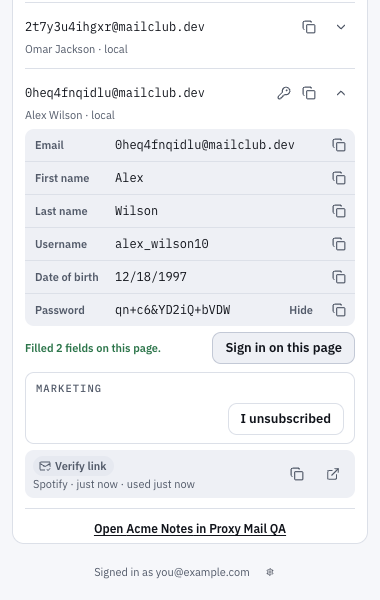
- The key means this address has a saved password.
- The arrow opens the address’s details, each with a copy button.
- Show reveals the saved password, and Hide covers it again.
- Sign in on this page fills the sign-in form on the tab you’re on. It shows only where Proxy Mail QA is on for the site.
Good to know
Section titled “Good to know”- It asks to save only for Proxy Mail QA addresses, and only once the form is sent, never when a form is only filled.
- On a site set to Sign-up goes over several screens, the question waits until the sign-up’s email arrives or the sign-up ends (see Sign-ups over several screens).
- The popup’s Password tab makes a password on your device and can save it to a test address you pick, replacing any saved one.
- After a password reset, it asks whether to save the new password instead (see Password resets).