Turn it on for a site
Proxy Mail QA for Chrome stays off on every site until you turn it on for one. Turn it on for your app’s test site, such as staging or localhost, before you fill your first form there.
Turn it on from the popup
Section titled “Turn it on from the popup”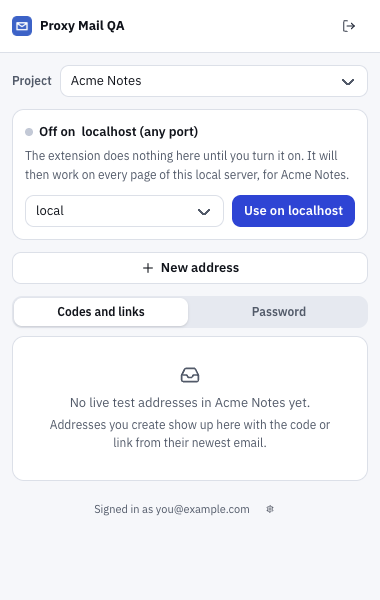
- Project is the project the site is added to. Choose it before you turn the site on.
- Off on localhost (any port) says the extension does nothing on this site yet.
- local is the environment, which labels every test address made on this site.
- Use on localhost turns it on for this local server. On other sites the button says Turn on for this site.
- Open your app’s sign-up page, or any page of the site.
- Click the extension’s icon in the toolbar. Check the project, and choose the environment: staging, qa, dev, preview, production or one of your project’s own.
- Choose Turn on for this site.
- Chrome asks to allow access to that one site. Allow it.
It starts on the open page at once and works on every page of that site from then on. The toolbar badge shows ON while you’re there. The site goes on your project’s list, so your teammates only need to give Chrome access to it in their own browsers.
It turns on for the page’s own host, such as staging.yourapp.com, and nothing wider.
Localhost in one click
Section titled “Localhost in one click”On a local dev server, the button says Use on localhost, and it covers every port, so it keeps working when your server moves from port 3000 to 5173. 127.0.0.1 is a site of its own: turn it on there too if you use both.
A site that looks live
Section titled “A site that looks live”If you choose production, or the site’s address doesn’t look like a test site (no staging, dev, qa or preview in it, say), the popup says “This looks like a live site. Real people may sign up here, so use it only if it’s a test environment.” Tick This is a test site to turn it on. Use test sites only.
When only leads add sites
Section titled “When only leads add sites”On a project where only leads change sites, the button is Ask a lead to add it. Once a lead approves it, come back to the site and choose Give Chrome access.
While it’s on
Section titled “While it’s on”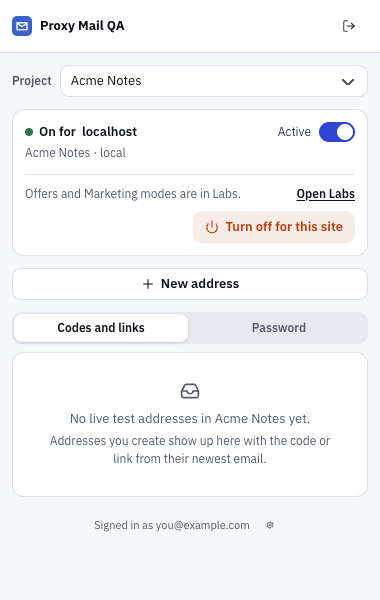
- On for localhost says it works on this site, with the project and environment it was added with below.
- Active pauses it on this tab only.
- Open Labs opens Labs in the app, where Marketing and offer emails adds the Offers and Marketing modes.
- Turn off for this site takes the site off your project’s list.
Pause it on a tab
Section titled “Pause it on a tab”Switch Active off and the card says Paused: the extension’s buttons and cards leave the page, and the badge shows OFF. Other tabs on the site keep working, and the site stays on the list. The pause lasts through reloads of that tab until you switch it back on, close the tab or restart the browser.
Offers and Marketing
Section titled “Offers and Marketing”Sign-up is the only mode until you switch on Marketing and offer emails in Labs, which adds Offers and Marketing as tick boxes in this card. See Offers and Marketing.
Turn it off
Section titled “Turn it off”Turn off for this site takes the site off your project’s list, so it’s off for everyone on the project, and removes Chrome’s access to it unless another of your projects lists it. You see the button on a site you added, or on any site if you’re a lead. Where only leads change sites, only leads see it.
The project’s sites in the app
Section titled “The project’s sites in the app”Project settings → Sites lists where the extension works for the project: each site, its environment, and who added it and when. There you can:
- Add site: paste a page’s address or type the host, one host at a time; a
*isn’t accepted. localhost covers every port. A project holds up to 50 sites. Where only leads change sites, it’s Ask for a site. - Remove a site from its row’s menu. It stops working there for everyone on the project.
- Switch on Sign-up goes over several screens for a site whose sign-up carries on after Next. See Sign-ups over several screens.
The app can’t give Chrome access to a site, so each person does that once in their own browser: open the site, click the extension’s icon, choose Give Chrome access and allow it.
Good to know
Section titled “Good to know”- It doesn’t work on browser pages or Chrome Web Store pages.
- If you don’t allow Chrome’s prompt, the popup says “Chrome wasn’t given access to this site, so the extension stays off here.” Choose the button again to retry.