Options and shortcuts
This page covers the extension’s options page, its keyboard shortcut and the toolbar popup’s everyday controls: New address, the Sign-up on this tab card, pausing on a tab and signing out.
The options page
Section titled “The options page”Open it from the Options gear beside “Signed in as” at the bottom of the popup, by right-clicking the toolbar icon and choosing Options, or from Open options, which shows in the page after you choose Don’t ask again.
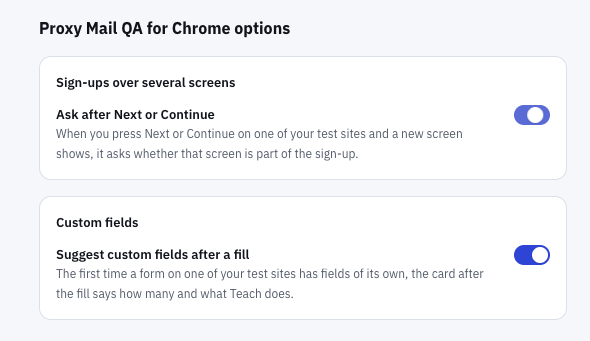
- Ask after Next or Continue: when you press Next or Continue on one of your test sites and a new screen shows, the extension asks whether that screen is part of the sign-up.
- Suggest custom fields after a fill: the first time a form on one of your test sites has fields of its own, the card after the fill says how many and what Teach does.
Both are on to start with, and a change saves at once. They belong to the person signed in, in this Chrome profile; while the extension is signed out, the page says “Sign in from the toolbar to change this.”
- Ask after Next or Continue. Don’t ask again on the question switches this off. Ask on these sites again here undoes Not now, which stops it on one site. See Sign-ups over several screens.
- Suggest custom fields after a fill. The line shows once per site. Don’t ask again on it switches this off. See Guesses and Teach.
The Fill this step shortcut
Section titled “The Fill this step shortcut”Alt+Shift+F (Option+Shift+F on a Mac) fills a later screen of a sign-up with the same test account, like Fill this step in the screen’s first empty field. It’s the extension’s only shortcut.
- It works on sites that are on, while Sign-up is ticked for the site, on a tab that isn’t paused.
- It doesn’t fill the first screen. Without a sign-up under way in the tab, it says “Start the sign-up from its email field first.”
- On a screen with nothing left to fill, it says “There’s nothing on this screen to fill.”
- It never presses Next or submits.
To change the keys, use Chrome’s own page at chrome://extensions/shortcuts.
New address
Section titled “New address”New address in the popup makes a test address with a name, username, date of birth, company and password (and a country, when it has one), each ready to copy. On a site that’s on, the address belongs to that site’s project and environment.
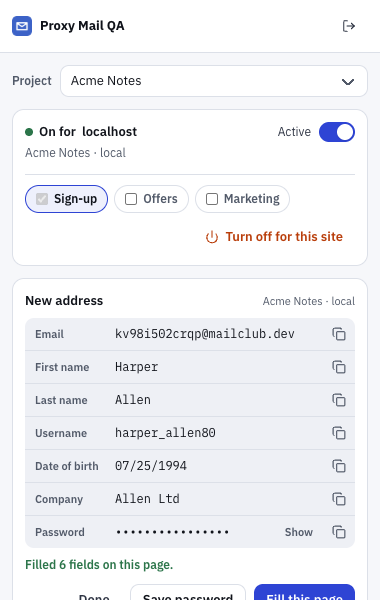
- Active pauses the extension on this tab when you switch it off (see below).
- New address lists the address and its details, with a copy button on each row.
- Show reveals the password, a new 16-character one.
- Save password keeps the password with the test account. Until then it stays on this device.
- Fill this page fills the sign-up form you last clicked into, or else the first one on the page.
Fill this page shows only on a site that’s on. Elsewhere, copy each detail into the form yourself. After a fill, the card says how many fields it filled, such as “Filled 6 fields on this page.”
Done closes the card. If you leave it open, it goes after 30 minutes or when you close Chrome, with its password unless you saved it.
Sign-up on this tab
Section titled “Sign-up on this tab”When a sign-up is under way in the tab, started in the page or the popup, the popup shows the Sign-up on this tab card in place of the New address button. It shows only while Sign-up is ticked for the site.
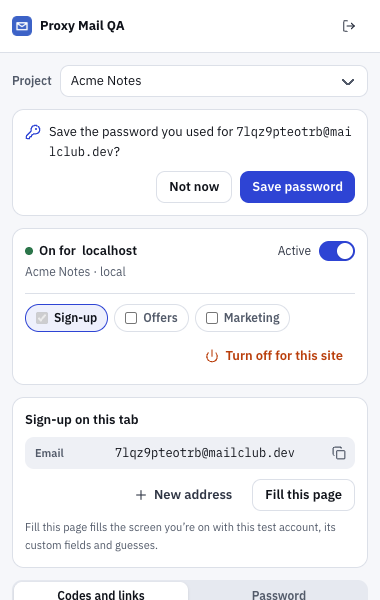
- Sign-up on this tab shows the test account this tab’s sign-up uses.
- New address makes another test address without taking over this tab’s sign-up.
- Fill this page fills the screen you’re on with this test account, its custom fields and guesses.
Pause on a tab
Section titled “Pause on a tab”Switch Active off in the popup’s site card to pause the extension on the tab you’re on; other tabs keep working, and the project’s list of sites doesn’t change. See Turn it on for a site for how long a pause lasts.
Sign out of the extension
Section titled “Sign out of the extension”Sign out, the arrow at the top right of the popup, signs out Proxy Mail QA for Chrome only. You stay signed in to the app in your browser.
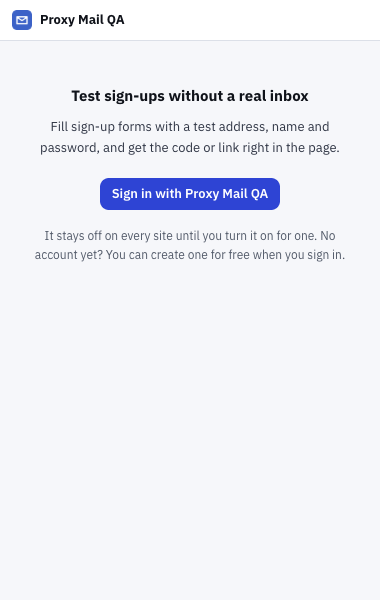
- Test sign-ups without a real inbox is what the popup shows while the extension is signed out.
- Sign in with Proxy Mail QA opens the app in a new tab to sign the extension in again.
While signed out, the extension does nothing on any site. Your project’s sites stay on its list and come back when you sign in, and so do your options-page settings.
Good to know
Section titled “Good to know”- Options-page settings aren’t synced: on another computer or Chrome profile, set them again.
- New address shows the date of birth as month/day/year.
- On a paused tab, the shortcut does nothing and the popup hides Fill this page.