Proxy Mail QA for Chrome
Proxy Mail QA for Chrome is for testing your app’s sign-up, sign-in and password-reset flows by hand. On the test sites you turn it on for, it fills sign-up forms with a test address, name and password, and shows the verification code or link in the page when the email lands.
Who it’s for
Section titled “Who it’s for”People who test sign-ups in a browser: developers checking their own form, QA testers, and anyone running through a flow before a release. It’s free on every plan, and works in Chrome and other Chromium browsers that install Chrome extensions, such as Microsoft Edge, Brave and Arc.
Coding agents such as Claude Code and Cursor don’t need it: they sign up and read the code through the MCP server.
Install it
Section titled “Install it”- Open Proxy Mail QA for Chrome in the Chrome Web Store and choose Add to Chrome.
- Pin it from Chrome’s extensions menu, so its icon stays in the toolbar.
You need a Proxy Mail QA account. A free one is enough, and you can create it when you sign in.
Sign in
Section titled “Sign in”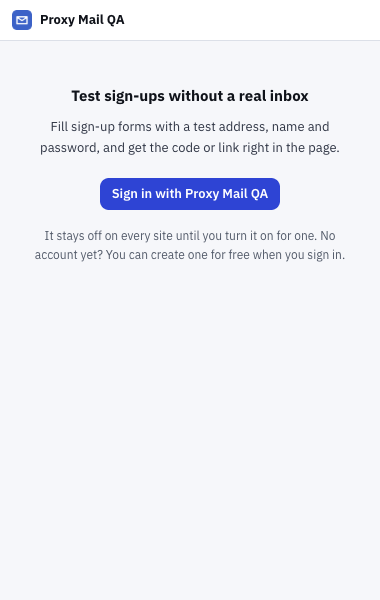
- Sign in with Proxy Mail QA opens the Proxy Mail QA app in a new tab, to connect the extension to your account.
- It stays off on every site until you turn it on for one. Signing in doesn’t give it access to any site.
- Click the extension’s icon in the toolbar, then Sign in with Proxy Mail QA.
- In the app, sign in if you aren’t already, then choose Connect the extension.
- The page says The extension is signed in. You can close the tab.
The extension signs in through the app, with no password of its own, and keeps its own session: signing out of one leaves the other signed in. To sign the extension out, use the button at the top right of the popup.
The popup at a glance
Section titled “The popup at a glance”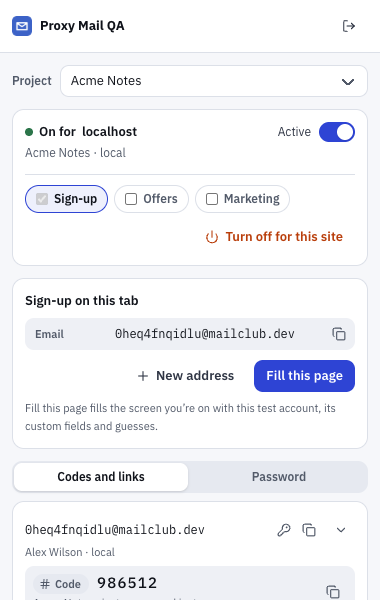
- Project chooses the project whose test addresses and sites you see. It opens on the project the site belongs to.
- On for localhost says the extension works on this site, with its project and environment below. Switch Active off to pause it on this tab.
- Sign-up on this tab shows the test address this tab’s sign-up is using. New address makes another.
- Fill this page fills the screen you’re on with that test account, its custom fields and guesses.
- Codes and links lists your project’s recent test addresses each with its newest code or link, ready to copy. Password makes a strong password on this device, to copy or save to a test address.
On a site you haven’t turned it on for, the site card says Off on with the site’s name, and offers Turn on for this site. When no sign-up is under way on the tab, New address makes a test address with its details ready to copy.
At the bottom, the popup says who you’re signed in as. The Options gear beside it opens the options page.
In this section
Section titled “In this section”- Turn it on for a site: turning it on from the popup, localhost in one click, pausing it on a tab and the project’s list of sites.
- Fill a sign-up form: the button in the email field, what it fills and leaves alone, the card beside the form and the pill.
- Guesses and Teach: marked guesses for fields nobody taught, and teaching what goes in a field for the whole project.
- Sign-ups over several screens: the question after Next, Keep this screen, and Fill this step.
- Codes and links in the page: Fill and Copy for codes, Open and Copy for links.
- Save and sign in again: saving the password after a sign-up, then signing in as that test account from the form or the popup.
- Password resets: opening the reset link, a new password and saving it.
- Offers and Marketing: coupons, the marketing box and unsubscribing, in Labs.
- Options and shortcuts: the options page, the shortcut for Fill this step, and the popup’s New address, pause and sign-out.
Good to know
Section titled “Good to know”- It does nothing on a site until you turn it on there, and Chrome asks for access to that one site. It doesn’t work on browser pages or Chrome Web Store pages.
- It never presses Next, never submits a form and never opens a link on its own.
- A password it makes stays on your device until you choose to save it. A saved one is encrypted on Proxy Mail QA’s servers.
- If your session ends, the popup says “Your session ended. Sign in again.”